
How to Publish an Ebook on Amazon KDP: The Complete Step-by-Step Guide (2026)
A practical walkthrough of Kindle Direct Publishing for ebooks, checked against Amazon's own help pages in November 2026, including the new $2.99–$12.99 band for the 70% royalty option.
 StorybuildEbook publishing guides
In this guide
- What Amazon KDP is and how it works
- What you need before you publish
- Step 1: Set up your KDP account
- Step 2: Prepare and format your ebook manuscript
- Step 3: Create a Kindle-compatible cover
- Step 4: Write your title, subtitle, description, keywords and categories
- Step 5: Upload and preview your manuscript
- Step 6: Understand Amazon KDP royalties (35% vs 70%)
- KDP Select vs wide distribution
- AI-generated content: what KDP requires you to disclose
- Common KDP mistakes and rejection reasons
- What happens after you press Publish
- How to market your first ebook
- Create your ebook with Storybuild
- Your KDP ebook publishing checklist
- Sources and further reading
- Frequently asked questions
If you want to learn how to publish an ebook on Amazon KDP, the good news is that the mechanics are straightforward: an account, a manuscript, a cover, a listing and a price. The harder part is getting each piece right the first time, so you do not lose days to a rejected file or a mispriced book.
This Kindle Direct Publishing guide walks through the whole process in order, using Amazon's own KDP help pages as the source. We checked every rule below against them on November 2, 2026, and the sources are listed at the end so you can verify them yourself. KDP changes its rules from time to time, so treat the live help pages as the final word.
The short version
- KDP is free to use. You earn a royalty on each sale and you do not need an ISBN for a Kindle ebook.
- The 70% royalty band is now $2.99–$12.99 on Amazon.com, up from $2.99–$9.99 since July 7, 2026. The 70% option still deducts a delivery fee of $0.15 per megabyte.
- Use EPUB, DOCX or KPF, and always preview the converted book in Kindle Previewer before you hit Publish.
- AI-generated text, images and translations must be disclosed to KDP when you publish. AI-assisted editing does not need to be.
- Allow up to three business days from pressing Publish to a live listing.
What Amazon KDP is and how it works
Kindle Direct Publishing (KDP) is Amazon's self-publishing platform, and it is the most direct way to sell ebooks on Amazon. You upload a book, describe it, set a price, and Amazon lists it in the Kindle Store. When someone buys it, Amazon pays you a royalty. There are no upfront fees and no minimum print run, and you keep the rights to your work.
Two kinds of book can be published through KDP, and they work very differently:
| Kindle ebook | KDP paperback | |
|---|---|---|
| Format | Digital, reflowable text read on Kindle devices and apps | Printed on demand and shipped to the customer |
| File you upload | EPUB, DOCX, KPF or similar | Print-ready PDF sized to a chosen trim size, with margins and bleed where needed |
| ISBN | Not required, Amazon assigns an ASIN | Required, and KDP offers a free one for print |
| Royalty | 35% or 70% of list price, depending on the option and price | 50% or 60% depending on list price and marketplace, minus printing costs |
| Cover | One front-cover image | Full wraparound cover with spine and back |
This guide covers Kindle ebooks only. If you plan to publish a printed book later, such as a paperback or an activity book, its interior and cover have separate print specifications.
What you need before you publish
Gather these first and the process takes an afternoon rather than a week:
- An Amazon account you can use to sign in to KDP.
- A finished, proofread manuscript in a format KDP accepts. If you do not have one yet, Storybuild can draft it from your idea.
- A front cover image that meets Kindle's size and content rules.
- Your book details: title, subtitle, author name, description, keywords and categories.
- Bank details and tax information so Amazon can pay you.
- A pricing plan: your price, your royalty option and whether you will join KDP Select.
- An honest answer to the AI question (covered below).
If you are still deciding on a title, a short list of candidates is worth having now. Our free ebook title generator can help you brainstorm options to test against what readers search for.
Step 1: Set up your KDP account
Sign in and add your details
Go to kdp.amazon.com and sign in with an existing Amazon account, or create a new one. KDP's Create a KDP Account guide walks through the screens. Accept the KDP Terms and Conditions, which cover exclusivity, content standards and when Amazon can remove a title. Then enter your name and address as they appear on your legal documents, because they are used for payments and tax reporting.

Set up how you get paid
Add a bank account in your account's payment settings. According to KDP's payment schedule, royalties are paid every month, approximately 60 days after the end of the month in which the sale was reported, so January sales arrive around the end of March. Direct deposit has no minimum threshold, while wire and check payments do.
Complete the tax interview
KDP asks you to complete a tax information interview before you can publish. If you are outside the United States, royalties from Amazon.com ebook sales are subject to 30% US tax withholding by default. You may qualify for a reduced rate if your country has a tax treaty with the United States. KDP's tax withholding page explains that the W-8 form expires on the last day of the third calendar year after you sign it, and if it lapses the rate reverts to 30%, so diarise the renewal.
Step 2: Prepare and format your ebook manuscript
Good Amazon KDP ebook formatting comes down to one idea: a Kindle ebook is reflowable. Readers change the font, text size and screen, so the text has to adapt. That is why a page layout that looks perfect in a design tool can look broken on a Kindle. KDP's eBook Manuscript Formatting Guide covers the practical details for Word files.
EPUB, DOCX and PDF: which should you upload?
KDP accepts several formats, listed on its supported file formats page. Here is how the main ones compare:
| Format | Best for | Watch out for |
|---|---|---|
| EPUB | Control over structure, styles and images. A good choice if your tool exports clean EPUB. | Must meet Kindle's publishing guidelines, and supports fewer Kindle features than KPF. Validate it in Kindle Previewer. |
| DOCX | Simple text-led books written in Word or Google Docs. KDP says most DOC and DOCX files convert well. | Complex formatting can convert badly, so use built-in heading styles and avoid manual spacing. |
| KPF | Books built in Kindle Create, Amazon's desktop formatting tool. KDP calls KPF its preferred format. | You need to install and learn another app. |
| Fixed pages that must look the same everywhere. | Accepted only for certain languages, including English, and not among KDP's suggested formats. Text may not reflow the way readers expect. |
KDP also accepts HTML, RTF and plain text. One more change to know about: since March 2025, KDP no longer accepts MOBI files for fixed-layout ebooks.
For most authors the practical answer is DOCX for a simple text book, EPUB or KPF when you want more control. Whichever you choose, you are not finished until you have previewed the converted result.
Formatting rules that prevent most problems
- Do not put the cover in your manuscript. KDP adds the cover you upload during title setup, and a second copy inside the file is a classic mistake.
- Use real heading styles (Heading 1 for chapter titles, Heading 2 for sections) rather than bigger bold text. They drive the table of contents and the reader's navigation.
- Add a linked table of contents so readers can jump between chapters. Kindle Create and Word can generate one from your headings.
- Keep body text on default styling. KDP's content quality guide says body text must use the default colour, and forcing white text or a black background can make a book unreadable on some devices.
- Insert images inline at sensible sizes. Larger files cost more to deliver, which affects your royalty (see Step 6).
- Skip manual page breaks and tab-based indents. Use paragraph styles and a chapter-level page break instead.
- Proofread before you upload. Typos earn bad reviews.
Preview it in Kindle Previewer
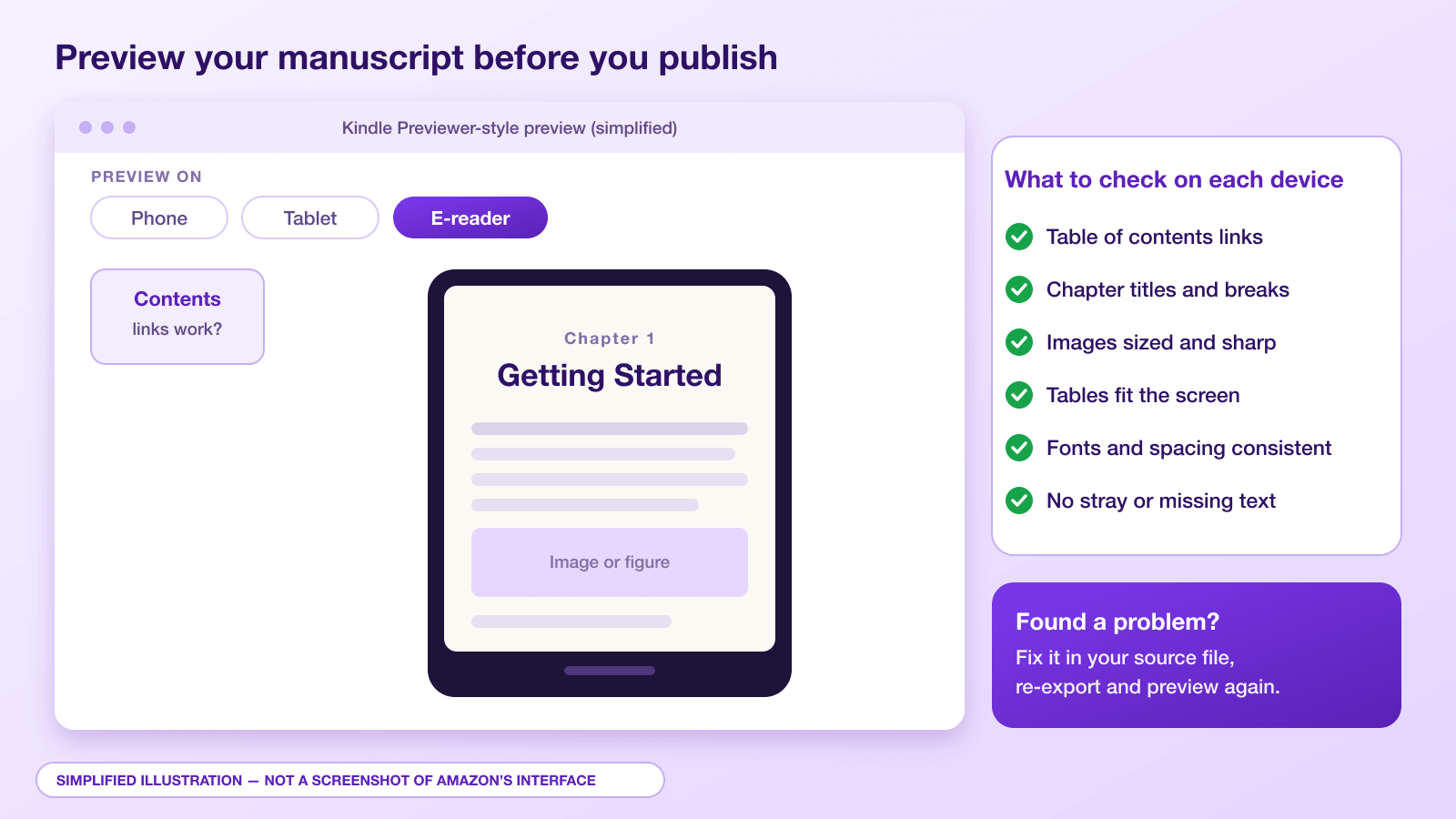
Kindle Previewer is Amazon's free desktop app, available for Windows and Mac, that shows how your book looks on different Kindle devices and phones. Open your file in it before you upload and scroll the whole book, checking the table of contents, chapter openings, images, tables and lists.
Step 3: Create a Kindle-compatible cover
On Amazon, your cover is your shop window. It appears as a thumbnail in search results, so it needs to be legible at a very small size. A good ebook cover has a bold title, a clear subtitle, a readable author name and one strong image.
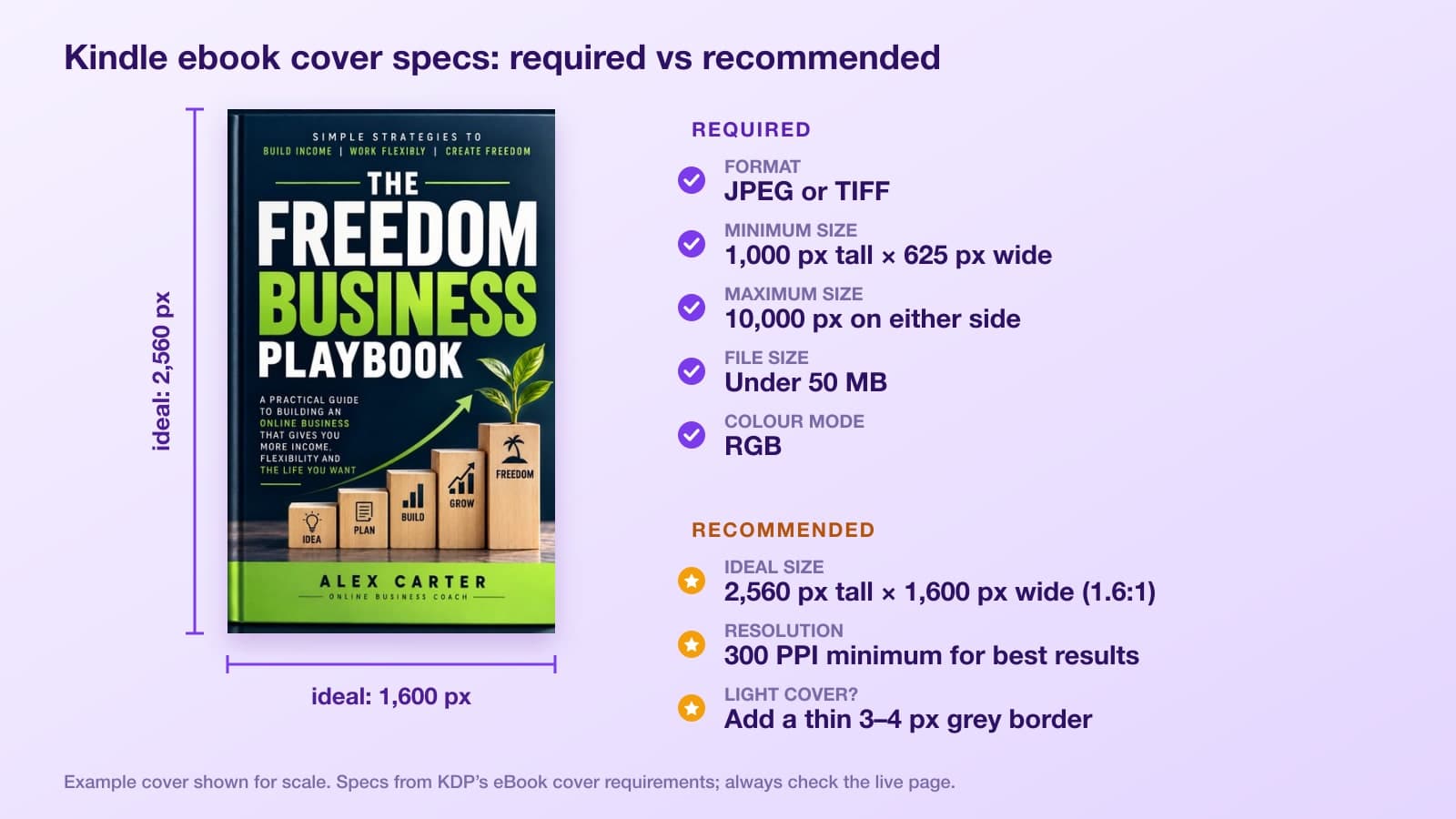
KDP separates what it requires from what it recommends. Under its ebook cover requirements, the file must be a JPEG or TIFF under 50 MB, at least 1,000 pixels tall and 625 pixels wide, no more than 10,000 pixels in either direction, and in RGB. What KDP calls the ideal is 2,560 pixels tall by 1,600 pixels wide (a height-to-width ratio of at least 1.6:1) at 300 PPI or better. The ideal numbers are recommendations rather than hard rules, but aim for them, because a larger image looks sharper on high-definition screens. Do not stretch a small, low-resolution file to hit the target size.
Content rules matter as much as pixel counts. KDP's cover image guidelines say the cover should show the title and author name, and should not show a spine, barcode, back cover, price or temporary promotional text. Check for typos, watermarks and placeholder text, and if your cover has a white or very light background, add a thin 3–4 pixel grey border so it does not vanish into the page.
You can upload your own image or build one with KDP's Cover Creator. Either way, the title and author name on the cover must match the details you enter in the listing. Mismatches are a common reason for a book being flagged.
Step 4: Write your title, subtitle, description, keywords and categories
This is the part of publishing that most affects whether people find your book. KDP's metadata guidelines are strict, and the cover, file and listing must all describe the same book.
Title and subtitle
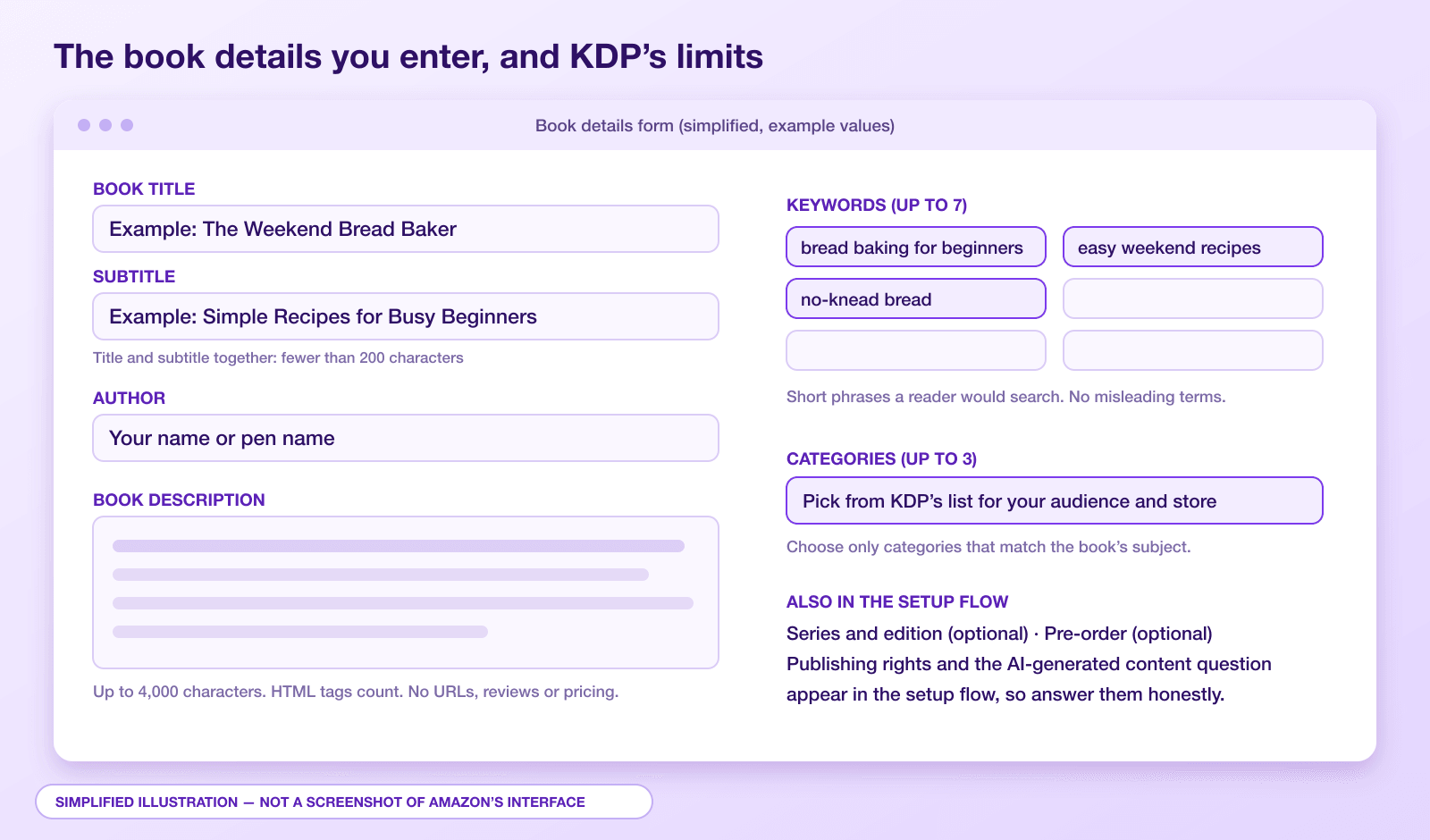
KDP requires the title and subtitle together to be fewer than 200 characters, but shorter is better. Your title should be the real title of the book as it appears on the cover and the title page. Do not stuff it with keywords or add claims such as "bestseller" that you cannot support. For non-fiction, put the promise in the title and the specifics in the subtitle.
Description
KDP's description guidelines allow up to 4,000 characters, and any HTML formatting you add (such as bold tags) counts towards the total. The description cannot include reviews, URLs, contact details, pricing or promotional text. Lead with your reader's problem, say what the book delivers, and keep paragraphs short so it scans well on a phone.
Keywords
You can enter up to seven keywords or short phrases. Think about what a reader would type into Amazon and use the search bar's suggestions as a check. KDP's keyword guidance advises against repeating words already in your title or categories, subjective claims such as "best", and anything misleading.
Categories
During title setup you choose up to three categories from a list, based on your primary audience and marketplace (see the metadata guidelines above). Pick the ones that match the book's central subject. KDP can change a book's categories at any time to protect the customer experience, so accuracy matters more than trying to game a small category.
ISBN, DRM and other settings
KDP's ISBN page confirms that ebooks do not require an ISBN, and KDP assigns an ASIN automatically. You will also choose whether to apply Digital Rights Management (DRM). Since January 20, 2026, verified purchasers can download the EPUB and PDF files of books you confirm as DRM-free, so decide whether you are comfortable with that.
Step 5: Upload and preview your manuscript
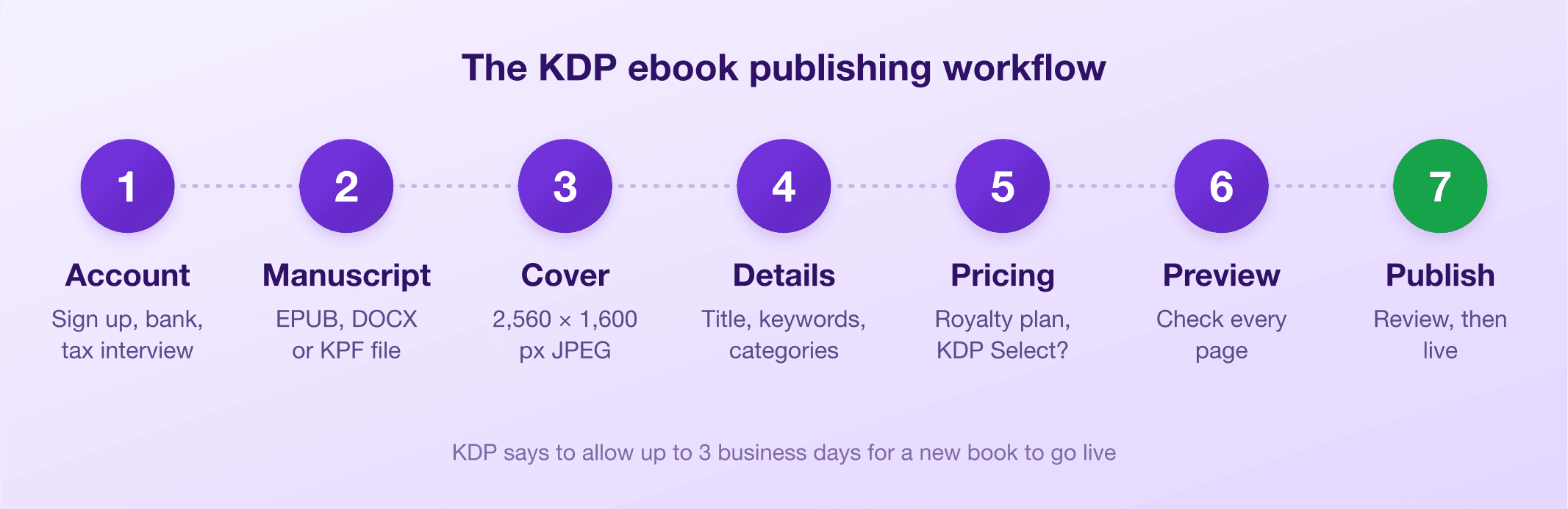
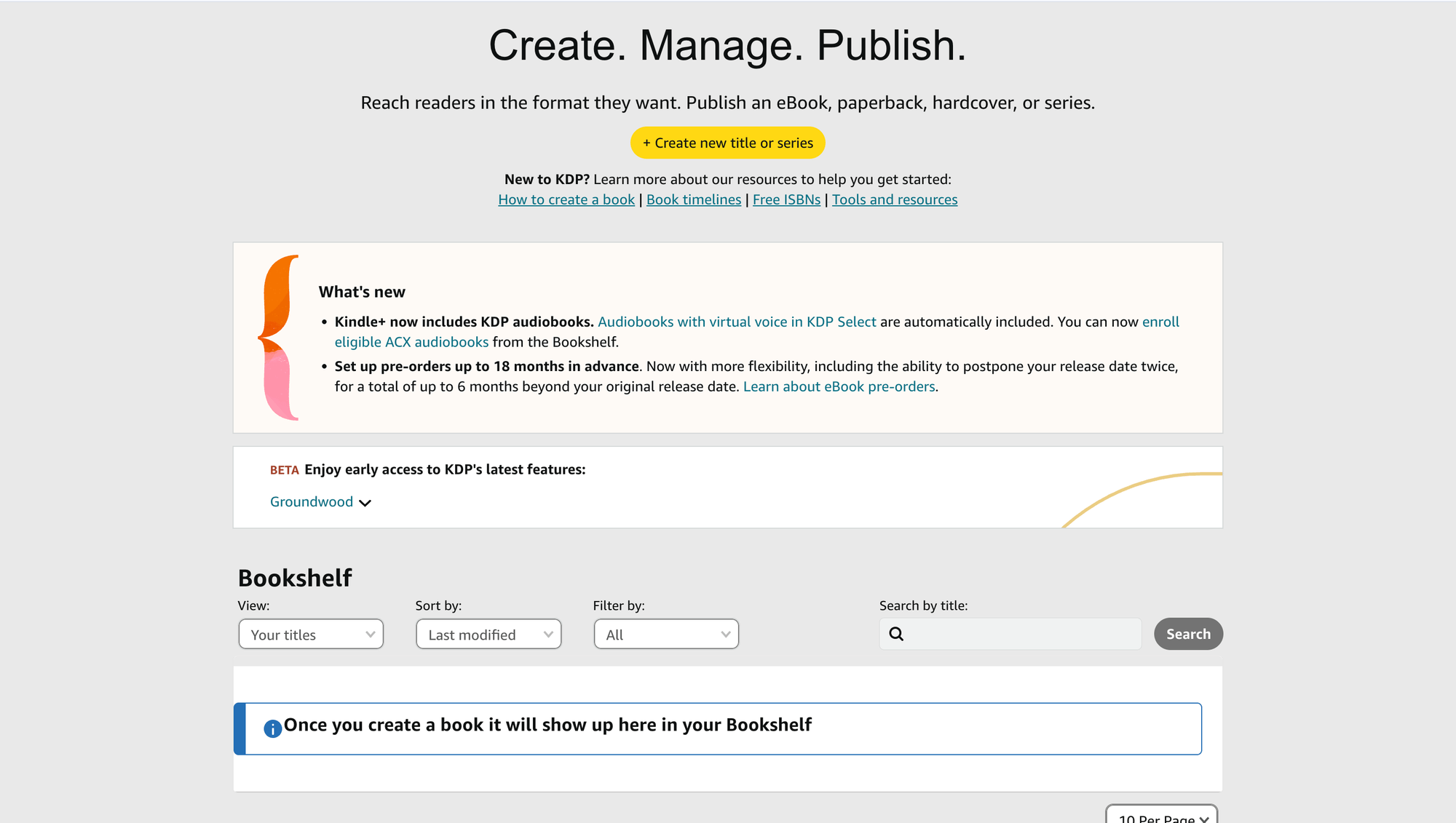
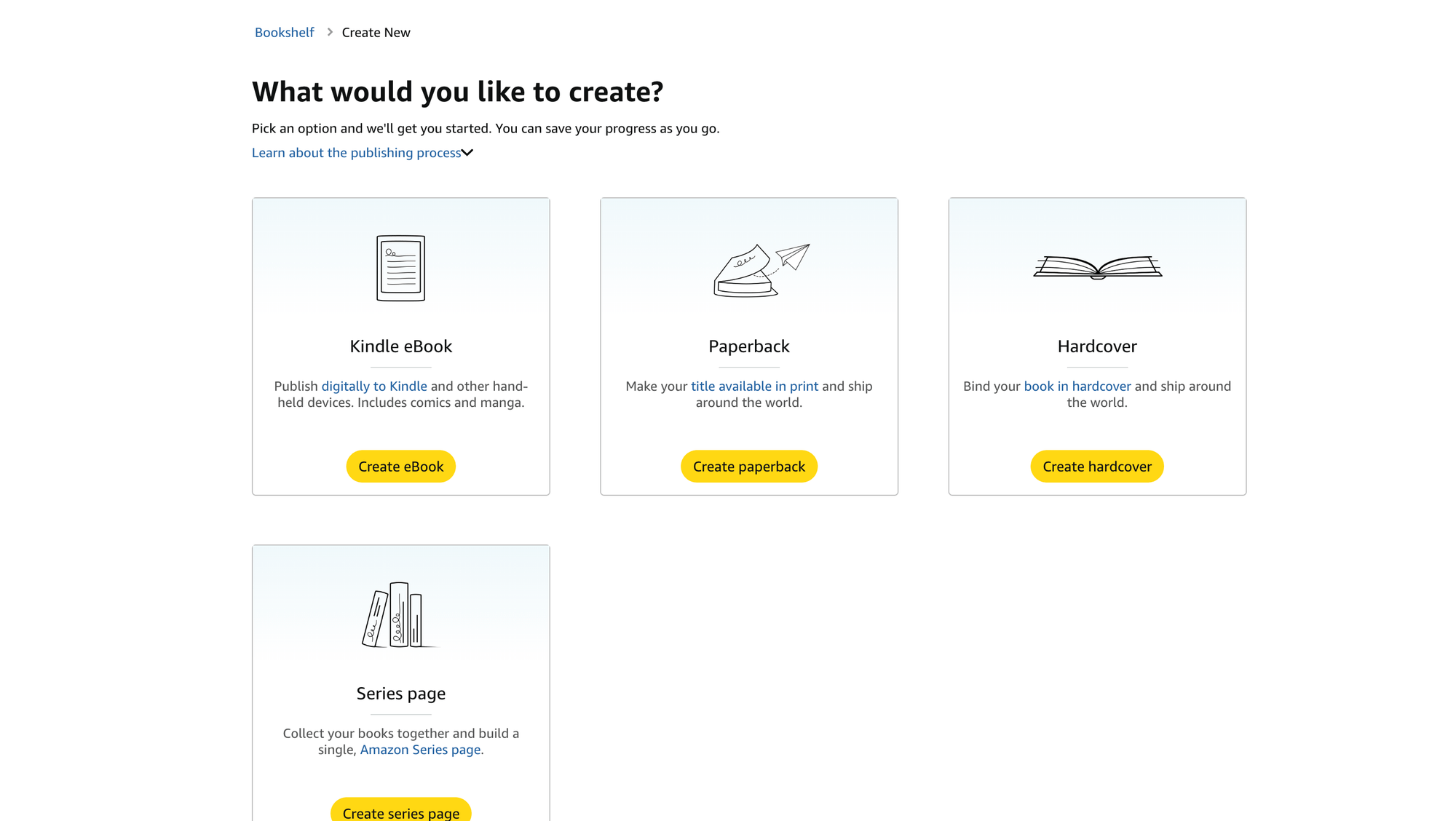
In your KDP Bookshelf, click + Create new title or series, then select Create eBook. KDP's Create a Book guide outlines the stages: book details, then uploading and previewing your content, then rights and pricing.
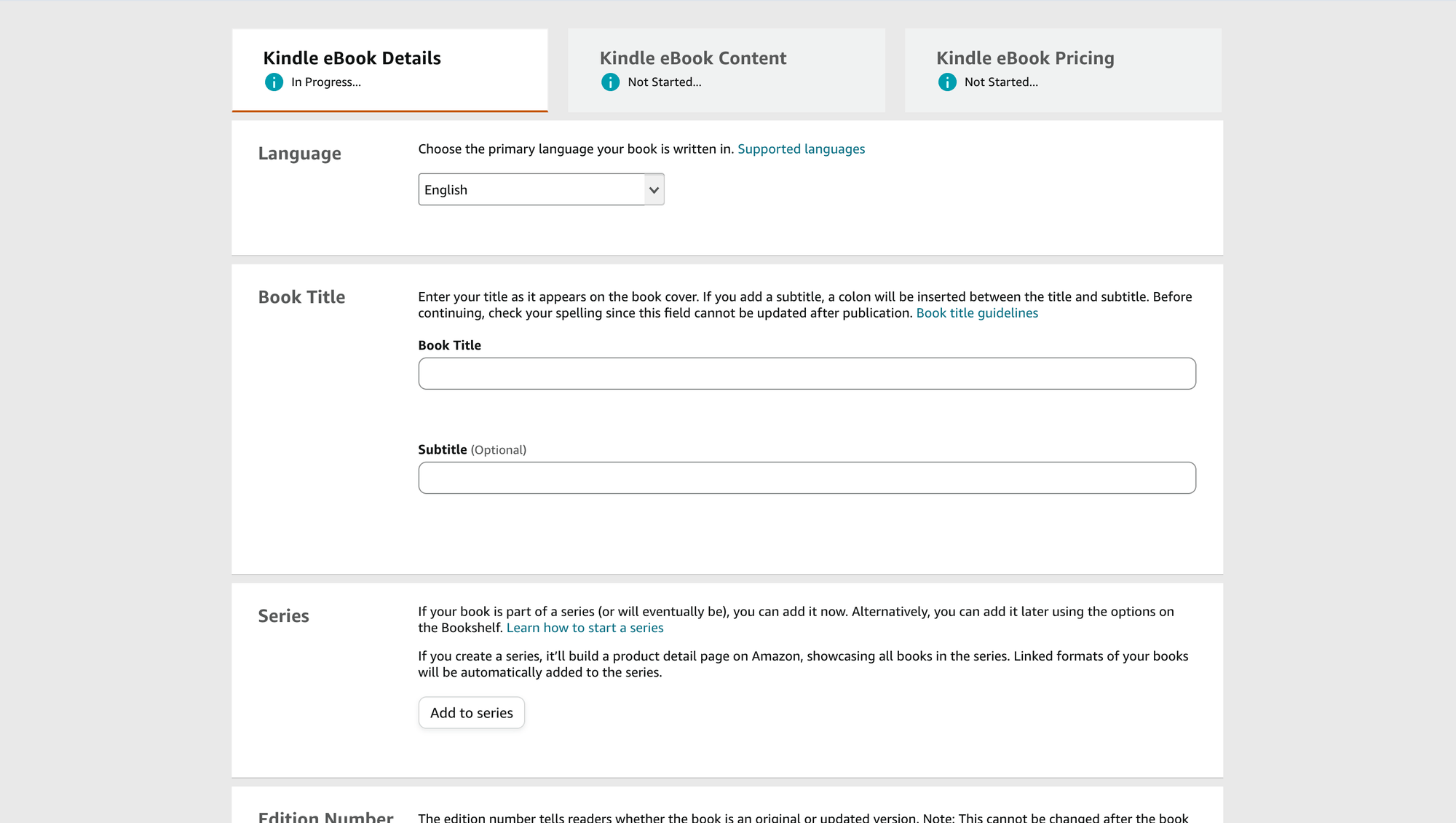
- Details: enter the language, title, subtitle, author, description, keywords and categories from Step 4. Answer the publishing-rights question honestly. A public domain work generally cannot use the 70% option.
- Content: choose your DRM setting, upload the manuscript, then upload your cover. Answer the AI-generated content question (covered below).
- Preview: launch the online previewer once the upload and conversion finish. Go through the book page by page and check for conversion errors, odd line breaks, missing images and a broken table of contents.
- Pricing: covered in the next section.
If the preview shows a problem, fix it in the source file and re-upload. You can replace the file and re-run the preview as often as you need before you publish.
Step 6: Understand Amazon KDP royalties (35% vs 70%)
KDP royalties are where new authors make their most expensive mistakes, so it is worth slowing down here. You choose one of two options when you price your ebook, as set out on KDP's eBook Royalties page.
The two royalty options at a glance
| 35% royalty | 70% royalty | |
|---|---|---|
| List price on Amazon.com | $0.99 to $200 | $2.99 to $12.99 |
| Minimum price by file size | $0.99 under 3 MB, $1.99 from 3 MB to under 10 MB, $2.99 at 10 MB or more | $2.99 |
| Delivery fee | None | $0.15 per MB on Amazon.com, minimum $0.01 |
| Rate applies to | List price excluding VAT | List price excluding VAT, minus the delivery fee |
| Eligibility | Any in-copyright or public domain book | Original, in-copyright content, sold in an eligible territory |
The widened 70% band is the big 2026 change. Effective July 7, 2026, the 70% royalty price band on Amazon.com is $2.99–$12.99, previously $2.99–$9.99, according to KDP's eBook List Price Requirements. KDP says the change only expands the band: the $2.99 minimum, the 35% option and the delivery fee are unchanged, and you do not have to reprice existing books. Other marketplaces have their own price bands, so check the same page for each store you sell in.
Three eligibility details are worth knowing. The 70% option applies only to customers in eligible territories, and sales elsewhere earn 35%. Public domain books, and books made up mostly of public domain content, are limited to 35%. And for customers in Brazil, Japan, Mexico and India, a book must also be in KDP Select to earn 70%.
Worked royalty calculations
The formula for the 70% option is: (list price × 70%) − delivery fee. The delivery fee is the file size in megabytes, as KDP measures it, multiplied by the rate on KDP's Digital Book Pricing Page, which is $0.15 per MB on Amazon.com. The formula for the 35% option is simply list price × 35%.
These examples use a US customer, so no VAT applies, and a 2 MB text-based ebook, which carries a delivery fee of $0.30:
| List price | 35% option | 70% option (after $0.30 delivery) | Better choice |
|---|---|---|---|
| $2.99 | $1.05 | $1.79 | 70% |
| $4.99 | $1.75 | $3.19 | 70% |
| $9.99 | $3.50 | $6.69 | 70% |
| $12.99 | $4.55 | $8.79 | 70% |
| $14.99 | $5.25 | Not available, outside the band | 35% only |
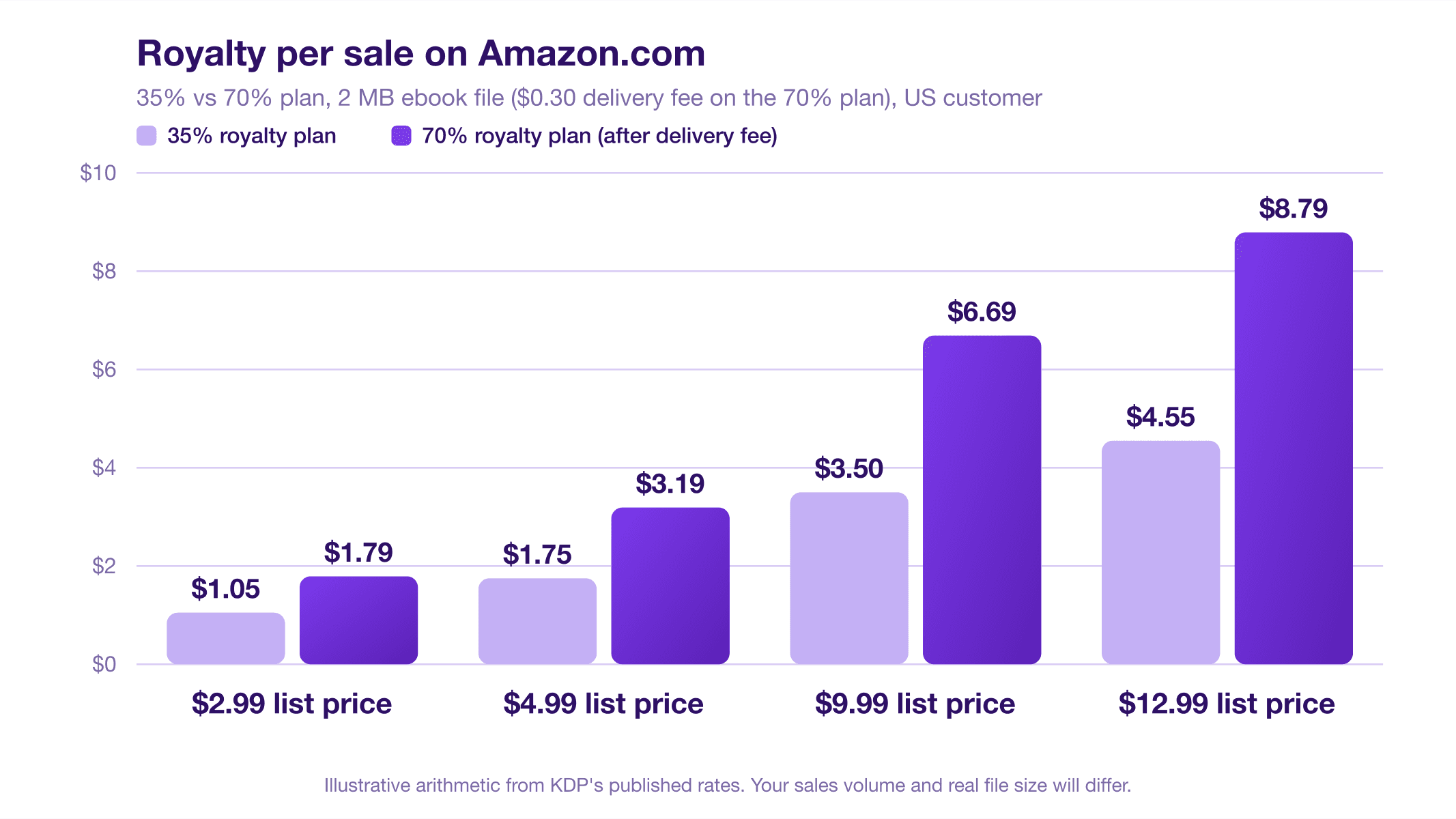
Notice what happens at the top of the band. A $12.99 ebook on the 70% option pays $8.79 per sale, while a $14.99 ebook, which can only use the 35% option, pays $5.25. You would need to price at roughly $25 on the 35% option to earn the same $8.79. This is why many authors price at or just below the top of the band.
When file size changes the answer
The delivery fee is where image-heavy ebooks get caught out. KDP's royalties page cites an average delivery cost of about $0.06 per unit sold and notes that it varies with file size, so a small text-only book barely notices it. Here is the same maths with a 10 MB file, which has a delivery fee of $1.50:
| List price | 35% option | 70% option (after $1.50 delivery) |
|---|---|---|
| $2.99 | $1.05 | $0.59 |
| $4.99 | $1.75 | $1.99 |
| $9.99 | $3.50 | $5.49 |
At $2.99 the 35% option pays more, and the crossover for a 10 MB file is about $4.29. Compress images sensibly and check the estimated royalty on KDP's pricing screen, which recalculates for your actual file size.
KDP Select vs wide distribution
When you set your price, KDP asks whether to enrol the ebook in KDP Select. This is a strategic choice, not a formality.
| KDP Select | Wide distribution (not in Select) | |
|---|---|---|
| Where you can sell the ebook | Digital edition only through KDP (and public libraries) for each 90-day term | Anywhere: Kobo, Apple Books, Google Play, your own site and more |
| Extra earnings | Page-read payments from the KDP Select Global Fund when subscribers read your book in Kindle+ | None from Amazon's subscription programme |
| Promotions | Free Book Promotions (up to five days per term) and Kindle Countdown Deals on Amazon.com and Amazon.co.uk | Standard price changes only |
| Term | 90 days, renewing automatically unless you switch it off | No lock-in |
| Print edition | You can still sell paperbacks and other formats elsewhere | Same |
Before you tick the box:
- Exclusivity covers the digital ebook. According to the enrolment rules, during the 90-day term the Kindle ebook can only be distributed through KDP and public libraries. Print and other formats may be sold elsewhere.
- Page-read earnings vary. Subscribers' reading is measured in Kindle Edition Normalized Pages (KENP), and you earn a share of the KDP Select Global Fund based on your share of all pages read. The per-page rate changes every month, so you cannot predict it precisely (see Royalties in Kindle+). KDP's help pages call the subscription programme Kindle+, which readers may still know as Kindle Unlimited.
- It renews automatically. To stop it, open the menu next to the book in your Bookshelf, choose Manage KDP Select and turn off automatic renewal. You can cancel within three days of a term starting. Public domain content is not eligible.
Select can suit a new author who wants Amazon's subscription readers and promotional tools and does not plan to sell elsewhere. Wide distribution suits authors who sell direct or want to reach readers on other stores. You can change your mind at the end of any term.
AI-generated content: what KDP requires you to disclose
If you used AI to help create your ebook, this section matters. KDP's content guidelines draw a clear line between two categories.
- AI-generated content is text, images or translations created by an AI-based tool. KDP says that if you used an AI tool to create the actual content, even if you later made substantial edits, it counts as AI-generated. AI-generated images include cover images, interior images and artwork.
- AI-assisted content is work you created yourself that you improved with AI tools, for example to edit, refine or error-check it, or to brainstorm ideas. KDP says you are not required to disclose AI-assisted content.
When you publish a new book, or edit and republish an existing one, you must tell KDP about any AI-generated content. You are also responsible for making sure all AI-generated and AI-assisted content meets KDP's content guidelines, including intellectual property rights. KDP reviews books using a mix of machine learning, automation and human review, and non-compliant content is rejected or removed. If a title is removed, you are notified and can appeal.
In practice: if an AI tool wrote your chapters or generated your cover art, answer yes to the AI-generated content question. If you wrote the book yourself and only used a tool to catch typos or tighten sentences, that is AI-assisted and needs no disclosure. Disclosure does not guarantee acceptance, so also review any AI-written text for accuracy, originality and quality before you publish.
Re-read the Content Guidelines whenever you publish a new title, because the guidance is updated over time.
Common KDP mistakes and rejection reasons
Most problems come down to a handful of avoidable errors. KDP's Guide to Kindle Content Quality and content guidelines flag these:
- Metadata that does not match the book. The title, subtitle, author name or series on the cover or in the file must match what you entered in the listing. Mismatched keywords and categories are flagged too.
- The wrong file. Uploading an old draft or a different book gets titles removed. Always check the previewer.
- Poor formatting. Broken tables of contents, missing images, fixed formatting that does not reflow, and unreadable text all create a bad customer experience.
- Low-quality or repetitive content. KDP rejects content that is excessively reused, recycled or repeated within or across books, and content rebranded with metadata changes that confuse readers.
- Misleading keywords or categories. Putting a book in the wrong category, or using unrelated bestselling terms, can get the metadata changed or the title removed.
- Cover problems. Placeholder text, blurry images, a price or promo on the cover, or text that is cut off or hard to read.
- Missing or inaccurate AI disclosure. See the previous section.
- Copyright problems. Do not use text, images or fonts you do not have the rights to, and do not present mostly public domain material as original.
If KDP rejects a title or asks for more information, read the email carefully, fix the specific problem and resubmit, or use the appeal option if you believe it was a mistake.
What happens after you press Publish
Once you press Publish, the book enters review and its Bookshelf status shows In Review. KDP's Book Status page explains each stage. Here is what to expect:
- Review: KDP's timelines page says to allow up to three business days for a new book or update to go live. Reviews cannot be expedited or cancelled, and contacting support will not speed them up.
- Publishing, then Live: the status moves to Publishing and then Live. The detail page can take up to 72 hours to appear, and search results can take up to 72 hours after the book is live, so it may not show in search straight away.
- Reports: the Reports section shows units sold and estimated royalties, plus KENP page reads if you are in Select.
- Payment: royalties arrive roughly 60 days after the end of the month of sale (see the payment schedule in Step 1).
- Edits: you can update the manuscript, cover, description and price from your Bookshelf later. Changes may be reviewed again before they appear.
If you want a fixed launch date, KDP's pre-order option lets customers order before release. It is a good way to build early momentum.
How to market your first ebook
Publishing is only half the job. Amazon will not do your marketing for you, and a new listing starts with no sales history. These tactics work within KDP's rules:
- Perfect your listing first. A clear cover, a benefit-led description and accurate categories do more than any ad.
- Set up Amazon Author Central. It lets you build an author page with a bio and photo, and claiming your book there is a prerequisite for some ad types.
- Try Amazon Ads. Amazon's advertising guide for authors describes Sponsored Products, where you set your own budget and only pay when a shopper clicks. KDP also has an advertising help page. Start small and watch your cost per sale.
- Add A+ Content. It lets you add images, text and comparison tables to the detail page. KDP's A+ Content guide says it is created separately for each store and typically appears within eight business days.
- Use KDP Select promotions if you enrolled. Free Book Promotions and Kindle Countdown Deals can bring attention to a new title. Kindle Deals, a nomination-based promotion, requires the 70% option in the US.
- Bring your own audience. An email list, a website or a community is worth more than any Amazon tactic.
- Ask for honest reviews, never buy them. Amazon warns that accounts trying to manipulate its services can face termination and loss of royalties.
Be realistic: new ebooks usually start slowly, and results depend on your topic, the competition and how much you promote.
Create your ebook with Storybuild
Before you can publish on Amazon KDP, you need a finished book. That is the part Storybuild is built for. You describe your idea, and Storybuild's AI writes the chapters, designs a cover and formats the pages, so you get a complete ebook without staring at a blank page. You can review it, preview it and download it.
Turn your idea into a finished ebook
Describe your idea and let Storybuild write every chapter, design the cover and format the pages. See the ebook creator for how it works, or the pricing page for plans.
Three things to know if you plan to take a Storybuild ebook to KDP:
- Storybuild currently exports your ebook as a formatted PDF. KDP accepts PDF for English-language books, but PDF is not among its suggested formats (DOCX, KPF and EPUB). For the best Kindle reading experience, you may need to convert the text to DOCX or EPUB, or rebuild it in Kindle Create, then check it in Kindle Previewer. A PDF is ideal for selling directly, for example on Etsy, Gumroad or your own site.
- Storybuild content is AI-generated under KDP's definition. If Storybuild writes your chapters or designs your cover, answer yes to KDP's AI-generated content question. Review the text for accuracy and originality, and add your own expertise, examples and voice so the book is genuinely useful to readers.
- Nothing is guaranteed. KDP reviews every book and makes its own decisions, and no tool can promise acceptance or sales.
Your KDP ebook publishing checklist
Use this list on launch day. Tick each item before you press Publish.
- KDP account created, terms accepted and author details complete
- Bank account added and tax interview finished
- Manuscript proofread and free of placeholder text
- Formatted with real heading styles and a linked table of contents
- No cover image or copyright clutter inside the manuscript file
- Previewed in Kindle Previewer, including images, tables and lists
- Cover is a JPEG or TIFF under 50 MB, at least 1,000 × 625 px and ideally 2,560 × 1,600 px at 300 PPI
- Cover shows the title and author name, with no price, barcode or promo text
- Title, subtitle and author on the cover match the listing exactly
- Description is within 4,000 characters, with no URLs, reviews, pricing or promotional text
- Up to seven relevant keywords and up to three accurate categories chosen
- Publishing rights and DRM settings confirmed
- AI-generated content question answered honestly
- Royalty option and list price chosen, with the delivery fee checked against your file size
- KDP Select decision made, with the 90-day exclusivity understood
- Preview checked page by page in KDP's online previewer
- Launch plan ready: Author Central, an email to your list and a plan for reviews
Sources and further reading
All rules in this guide come from Amazon's own pages, checked on November 2, 2026. Amazon updates them regularly, so confirm the details before you publish.
Getting started
- Sign in to or create a KDP account and the Create a KDP Account guide
- Create a Book
- When will I get paid? and Tax Withholding
Manuscript and cover
- eBook Manuscript Formatting Guide and supported file formats
- Getting Started with Kindle Create
- Kindle Previewer download
- eBook cover requirements and Cover Image Guidelines for Kindle eBooks
Listing details
- Metadata Guidelines for Books, Write a Book Description and Make Your Book More Discoverable with Keywords
- ISBN and imprint and Digital Rights Management
Pricing and royalties
- eBook List Price Requirements (price bands, including the July 7, 2026 change)
- eBook Royalties and the Digital Book Pricing Page (delivery costs)
- KDP Select, KDP Select enrolment and Royalties in Kindle+
Rules, review and publishing
- Content Guidelines (AI-generated and AI-assisted content) and the Guide to Kindle Content Quality
- Timelines and Book Status
Promotion
Frequently asked questions
How much does it cost to publish an ebook on Amazon KDP?
Publishing on KDP is free. Amazon earns its share through the royalty model instead: it keeps 65% of the list price on the 35% royalty option, or 30% plus a per-megabyte delivery fee on the 70% option. You do not need to buy an ISBN for a Kindle ebook, because Amazon assigns an ASIN automatically.
How long does it take for a Kindle ebook to go live?
KDP's timelines page says a new book or update takes up to three business days to go live, and the detail page and search results can take up to 72 hours to catch up. Reviews cannot be expedited or cancelled, so allow several days and use the pre-order option if you need a firm launch date.
Do I need an ISBN to publish an ebook on KDP?
No. An ISBN is optional for Kindle ebooks and KDP assigns an ASIN automatically. ISBNs matter for paperbacks and hardcovers, and KDP's free ISBNs are available only for print formats.
Which file format is best for a Kindle ebook?
KDP lists DOC/DOCX, Kindle Package Format (KPF, made with Kindle Create) and EPUB as its suggested formats, and calls KPF its preferred format because it supports more Kindle features than EPUB. DOCX is the simplest route for a text-led book. Always check the converted result in Kindle Previewer before you publish.
Should I choose the 35% or the 70% royalty option?
For most ebooks priced between $2.99 and $12.99 on Amazon.com, the 70% option pays more even after the delivery fee. The 35% option makes sense when you price outside that band, or when a large, image-heavy file makes the delivery fee eat most of a low-priced sale.
Can I publish an AI-generated ebook on Amazon KDP?
Yes, but you must tell KDP when you publish content that is AI-generated, which covers text, images and translations created by an AI tool. Content you wrote yourself and only polished with AI tools is classed as AI-assisted and does not need to be disclosed. Either way, the book must meet KDP's content guidelines, and publication is never guaranteed.
Should I enrol my ebook in KDP Select?
KDP Select requires 90 days of digital exclusivity with Amazon in exchange for Kindle+ page-read earnings and promotional tools. It suits some authors, especially in genres with many subscription readers. If you want to sell the ebook on other stores or on your own site at the same time, stay out of Select.
How much money will my first ebook make?
Nobody can promise this. Earnings depend on your topic, cover, price, reviews, marketing and the competition in your category. Use the royalty maths in this guide to work out what each sale pays, then judge demand honestly before you invest heavily.